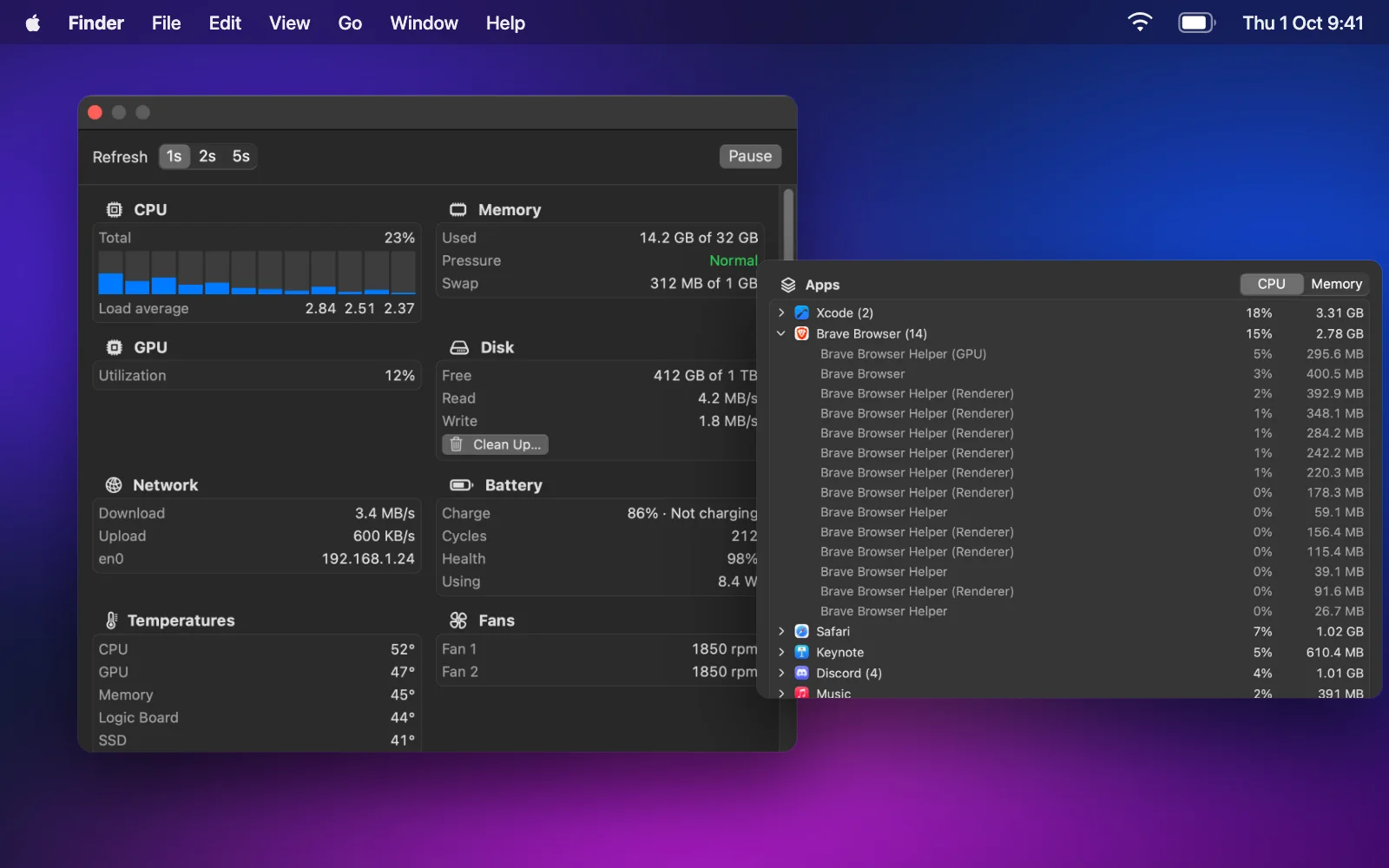
Your Mac, at a glance
CPU, memory, GPU, disk, network, battery, temperatures and fans, plus the top 10 apps with Quit and Force Quit. Clean Up frees caches and old logs, and deletes nothing until you confirm.
A second dock for macOS
Hatoba moors your apps, links and live widgets on the left, right or bottom edge of any screen. Calm until you reach for it, there the moment you do.
The second dock
Put your apps, links and widgets in one dock on the left, right or bottom edge of any screen. Drop apps in from the Finder or the Dock, drag an icon along to move it, and drag it away to remove it in a puff.
Widgets and live tiles
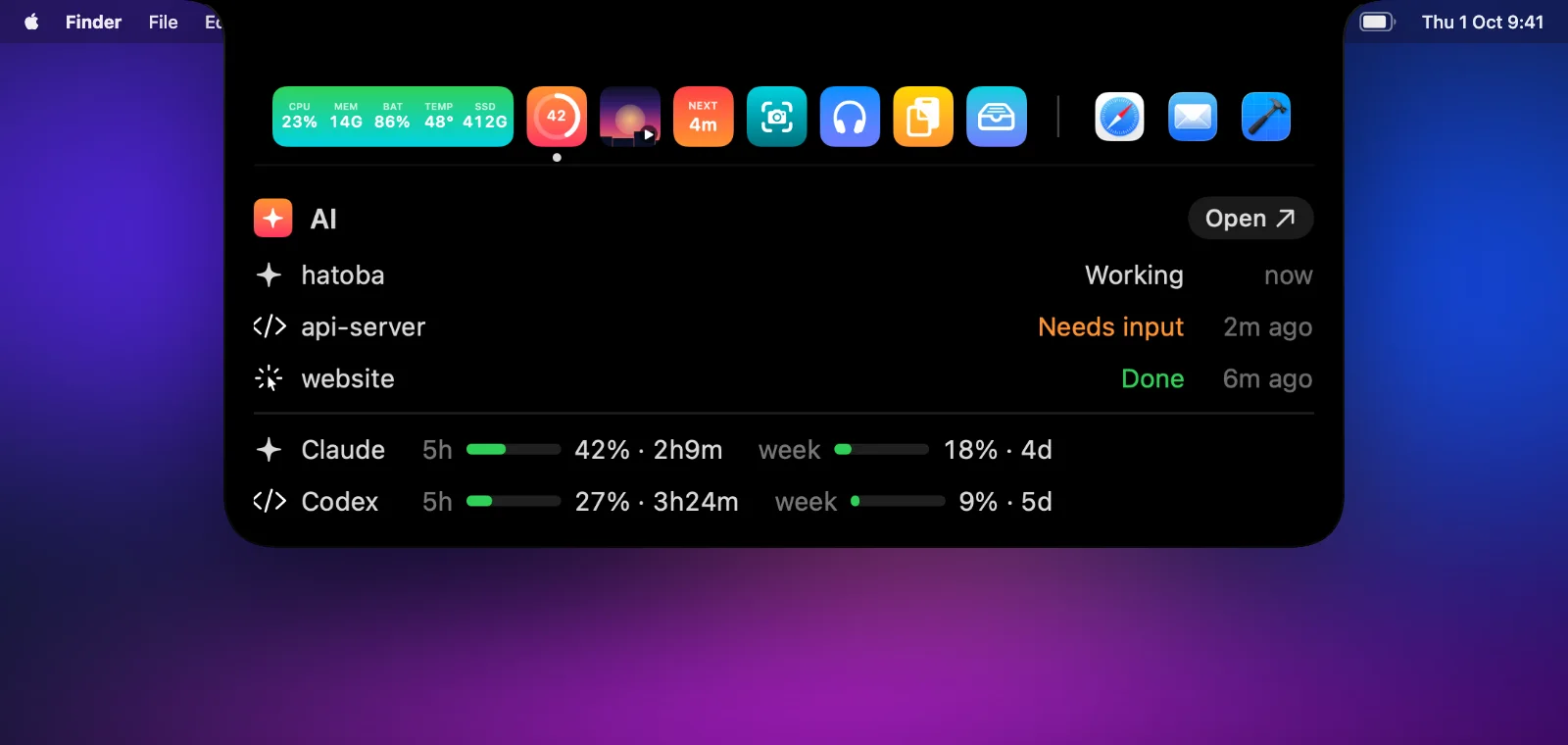
One layout of up to 16 apps, links and widgets. The widgets show live content right in the dock, and the full card is one hover away.
CPU, memory, GPU, disk, network, battery, temperatures and fans, plus the top 10 apps with Quit and Force Quit. Clean Up frees caches and old logs, and deletes nothing until you confirm.
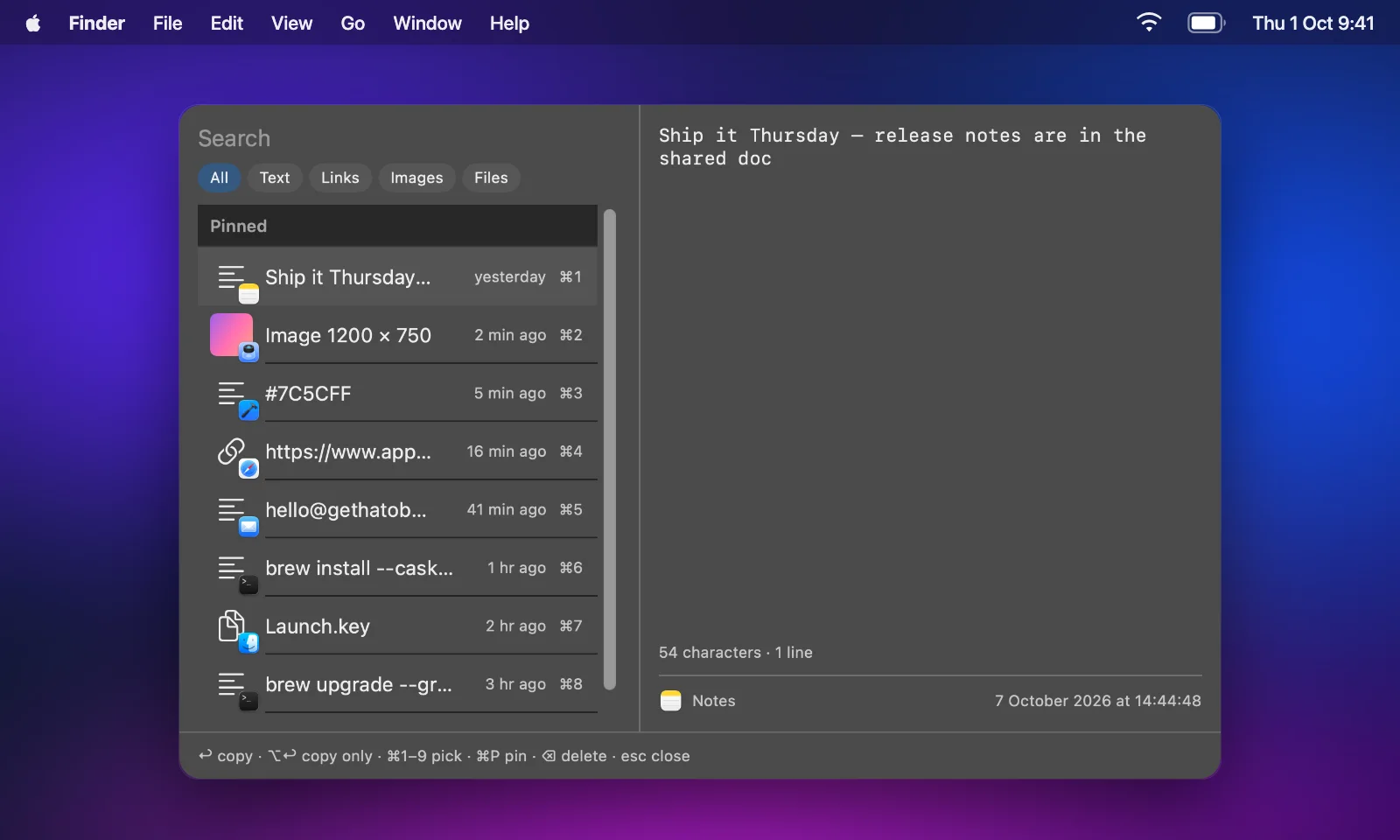
Your last 200 copies with the app each came from. Type to search, pick with Return or ⌘1–⌘9, and pin up to 50. Password managers' copies are never recorded.
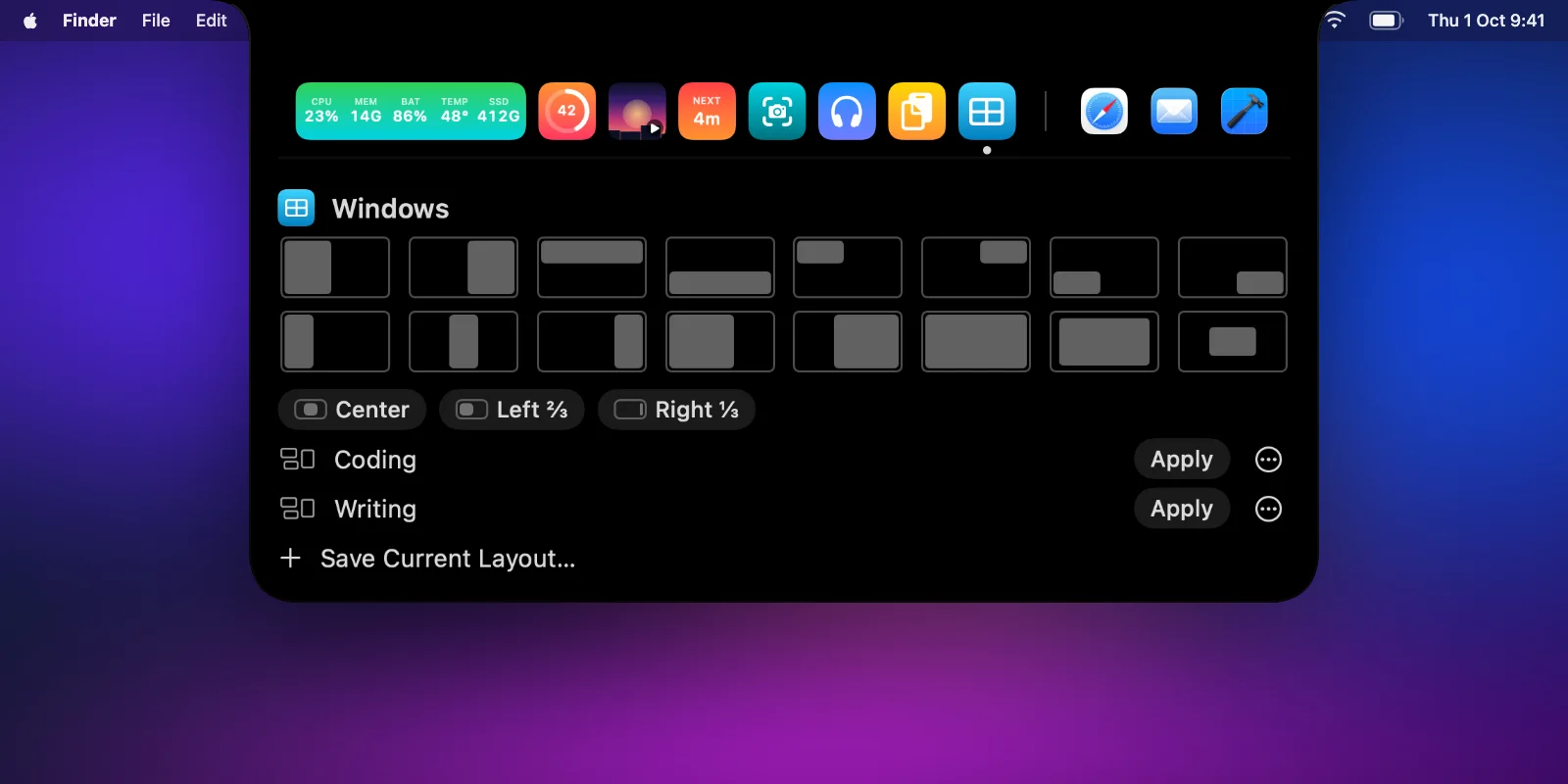
Rectangle's shortcuts, built in, plus dragging to edges and corners. Draw your own zones and save layouts that put every app back in a click.
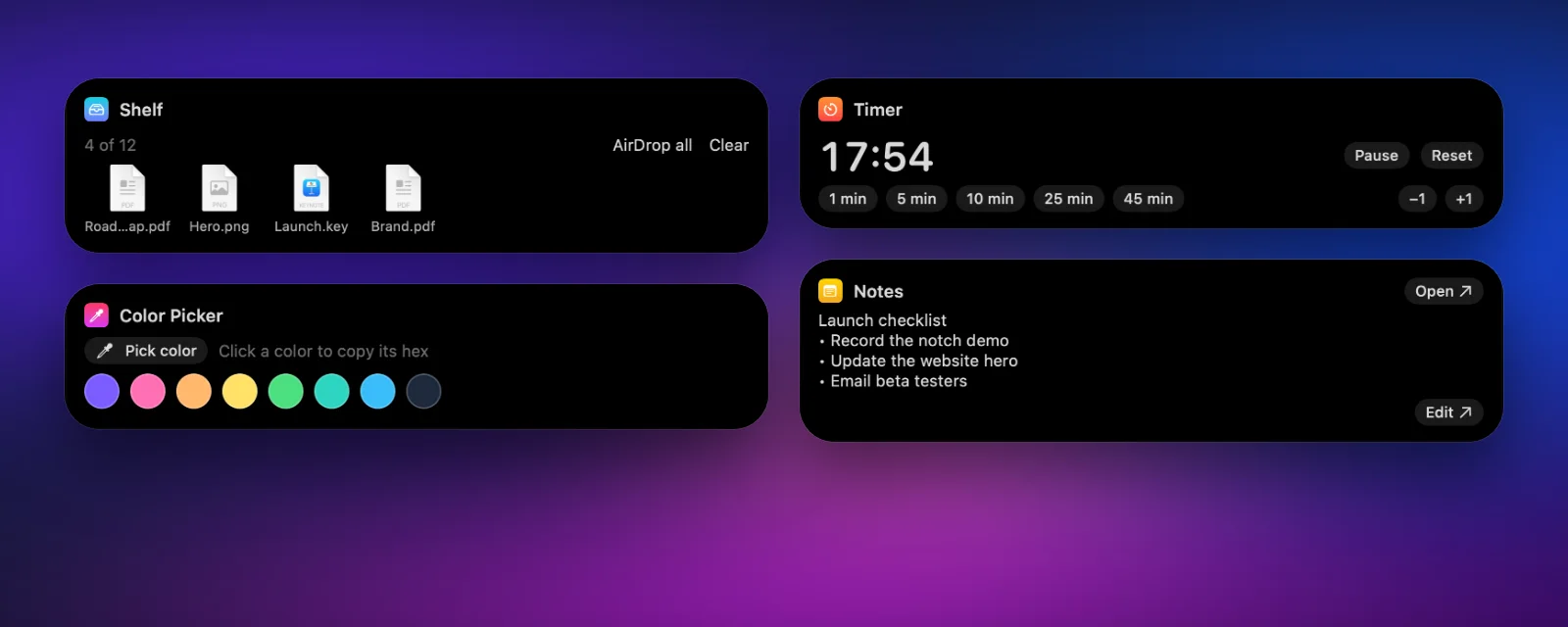
A shelf for files you'll need again, a timer that counts down in the dock, a quick note, a colour picker and a camera mirror.
Plus a volume and brightness HUD, live activities for charging, devices, new tracks and meetings, and brightness keys that dim external displays too.
AI agents
Every Claude Code, Codex and Cursor session reports in: working, waiting for your input, or done. The AI tile shows Claude's five-hour usage as a ring.
Screenshots
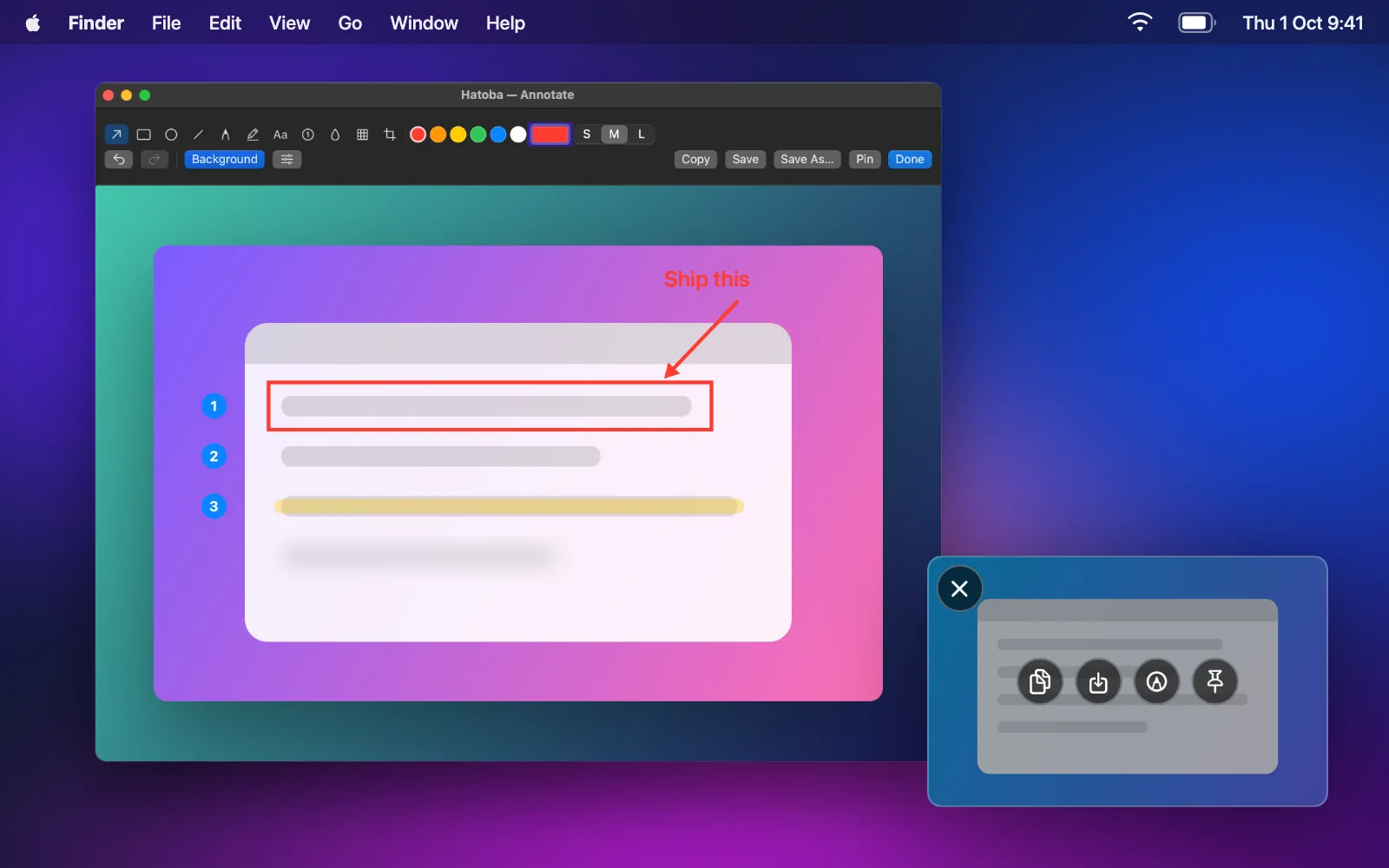
Area, window, full screen and text. The selection stays put so you can nudge it, with an 8× loupe for pixel-perfect edges.
Notch mode
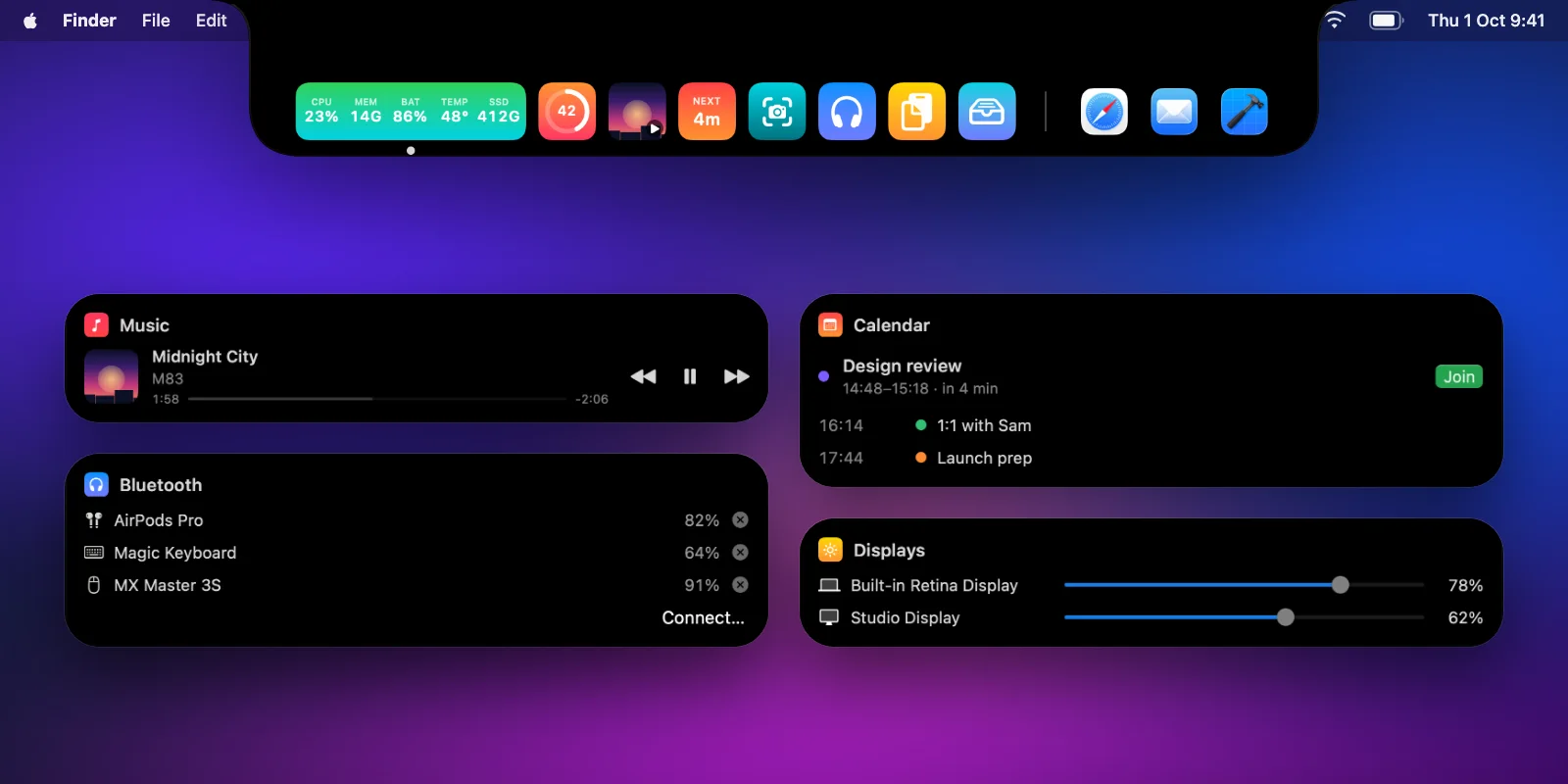
One switch in Settings and the same strip drops down from your MacBook's notch, with the hovered widget's card below it. On a display without a notch, it's a pill you can size.
The name
Hatoba, said ha-TOH-ba, is Japanese for a wharf: where boats come in and tie up. Your Mac is full of things in motion: agents working, music playing, meetings coming up, files flying around. Hatoba is the calm spot at the edge of your screen where all of it comes in and waits until you need it.
Pricing
Launch price
$8.99$14.99
One-time purchase, for up to 3 Macs
Requires macOS 15 or later. Notarized by Apple. Payment and tax handled by Polar.
Questions
Something else? Support reaches the person who built the app.
Yes. Every feature is unlocked for 14 days from the first launch. After that, the paid features need a license, and your layout and data are kept either way.
Stats with the apps list, AI agent activity, live activities, the HUD, gestures and haptics, the appearance options, and window snapping with the built-in zones. A license unlocks the rest, and everything comes back as you left it when you activate.
Up to 3. To move a license, open Settings → License on the Mac you no longer use and choose Deactivate.
macOS 15 Sequoia and later, on Apple silicon and Intel. You don't need a notch: the dock works on any screen, and notch mode shows a pill on displays without one.
Only for the features that need them: Accessibility for window snapping, pasting and the keyboard cleaner, Screen Recording for screenshots, Calendar for meetings. It asks the first time you use the feature, never at launch.
No. There's no account, no analytics and no tracking in the app. Your layout, clipboard, captures, notes and files stay on your Mac. The agent hooks read session names and states, never your prompts or code.
Yes, a full refund within 14 days of purchase, no questions asked. Send a direct message on X with your order email or number.
Yes. MacDock is now Hatoba: the same app by the same developer, with a name that says what it is.